
Manga panel edits on your phone, without a timeline
The slam, the stamp and the cut-in of a manga panel, from a script you write on your phone.
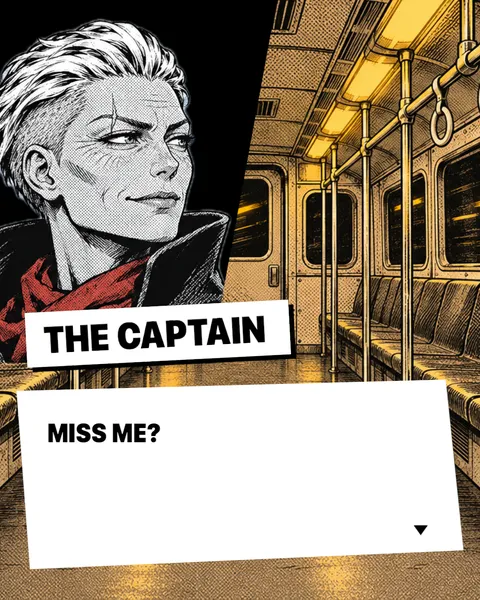
A manga panel edit makes still art hit. A panel slides in. A name lands. The words arrive one punch at a time.
It’s a close cousin of the motion comic, a form that combines print comics with animation. The usual way to make one is a timeline editor such as CapCut: you import each panel, keyframe the zoom and the shake, and place every caption by hand. It’s a real craft, and the best edits show it.
DialogCut takes a different route. You write who says what, and the Impact theme does the slam, the stamp and the cut-in for every line, timed for reading. There’s nothing to keyframe and nothing to line up.
What makes a panel feel like manga
Manga has its own language for force. Lines that converge on a face push the focus in, as if a camera rushed toward it. Ruled lines across the background show which way the action moves. A panel edit takes that energy and adds time: a panel arrives, holds while you read, then gets knocked aside by the next.
Impact works on the same instincts:
- The panel slams in. Each speaker’s portrait arrives on a diagonal panel and slides back off the same way.
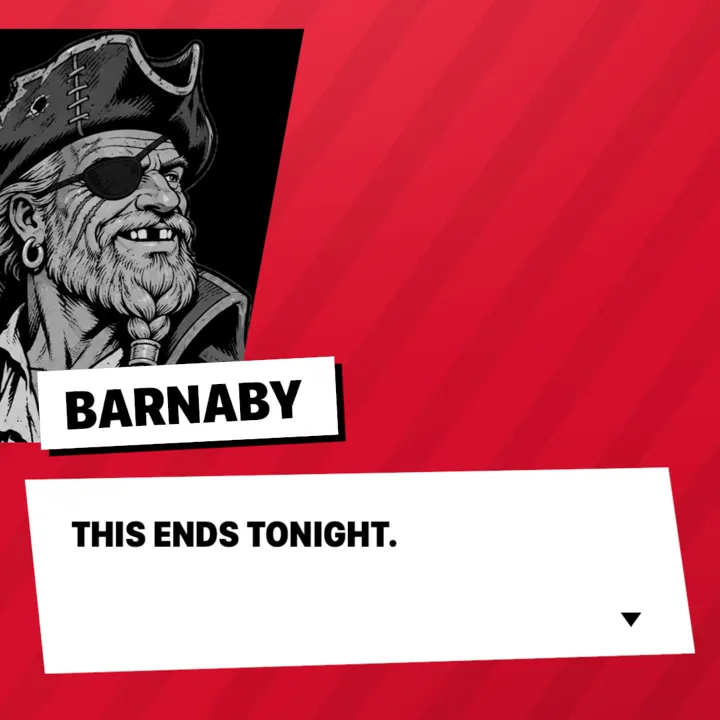
- The name stamps down. Black capitals on white, like a rubber stamp.
- The words hit. Condensed black capitals on a jagged white panel.
- The page moves. The theme’s Classic background rolls faint diagonal stripes under a light.
- The narrator gets a box. On the Punch look, narration turns the panel black, like a caption.
- Title cards are chapter pages. A big title fills the screen between scenes.
Write it like a fight
A panel edit lives on rhythm, and in DialogCut the rhythm comes from your script.
Keep lines short. One sentence per line hits harder than a paragraph. A long line still works: DialogCut splits it into pages.
Trade blows. Every time the speaker changes, a new panel slams in. Back-and-forth lines turn into a volley.
Stack a flurry. When the same character speaks again, their panel stays and the words change. Three short lines in a row read like three quick punches.
Save narration for the pause. The narrator’s panel is your caption box: the setting, the inner voice, the calm before the hit.
Watch it as you write. Play the scene in Preview, tighten a line, and play it again. A word cut here and there is often what turns a good exchange into a sharp one.
Here’s a short scene to try:
Title card · Label: Chapter 12 · Title: Round two
Background · A rooftop at sunset
Narration · The bell had already rung once.
Kaede · Get up.
Tobi · I’m up. I’m thinking.
Kaede · Think faster.
Tobi · Done. You’re going down.
Three panel edits to try
The standoff
Two rivals, one rooftop, no wasted words. Open on a title card with the chapter name, let the place show, then trade one-line threats until somebody blinks. End on the line that starts the fight, and cut there.
Kaede · You came back.
Tobi · I left something here. My pride.
The reveal
Let narration build the tension, panel by black panel. Then a title card drops the name nobody expected, and the next line belongs to the character everyone was talking about.
Narration · Nobody had seen the captain since the flood.
Narration · Nobody wanted to.
The comedy cut
A serious setup, a dramatic panel, and a reply that lets the air out. The slam makes the punchline land harder, because the stage treats it like a battle cry.
Kaede · This ends tonight.
Tobi · Can it end after dinner?
Make the panels yours
Use your own characters: an OC drawn in manga style, a sketch from your notebook, a commission. DialogCut removes the background, and on the Punch look the panel behind each character takes their Signature Color. Want a black-and-white page? The Noir and Newsprint looks turn the portrait black and white.
Frame each character the way a panel would: head and shoulders, face clear of the edges. A close crop reads best when the panel slams in.
If your fighter is new, give them an entrance first with an OC intro video. For where the box itself comes from, read a short history of the dialogue box.
Make it in DialogCut
- Make your characters. On the Characters tab, tap New, type a name, tap the portrait button and choose Photo Library. In Move and scale, frame the head and shoulders, check Face orientation and tap Choose. Pick a Signature Color.
- Start a story. On the Stories tab, tap New story and pick your fighters in Choose Characters.
- Write the scene. Tap Add › Title Card for the chapter and Add › Background for the place: a painted rooftop from Sample Backgrounds, or a place you drew from Open Gallery. Tap a character in the bar for each line, and Add › Narration for the caption.
- Pick Impact. In Preview, tap Themes, then Impact and Punch.
- Make the words hit. In Text reveal, pick By word, and each word cuts in on its own. Set Pacing faster for a fight, and raise Text scale for bigger words.
- Export. In Format, pick 9:16 (Social) for TikTok, Reels and Shorts, or 16:9 for YouTube. Tap Export, then Start, and tap Save video.
Round one
Your characters, your fight, no keyframes. Get DialogCut on the App Store or Google Play.
Sources
- “Manga iconography,” Wikipedia: https://en.wikipedia.org/wiki/Manga_iconography
- “Motion comic,” Wikipedia: https://en.wikipedia.org/wiki/Motion_comic